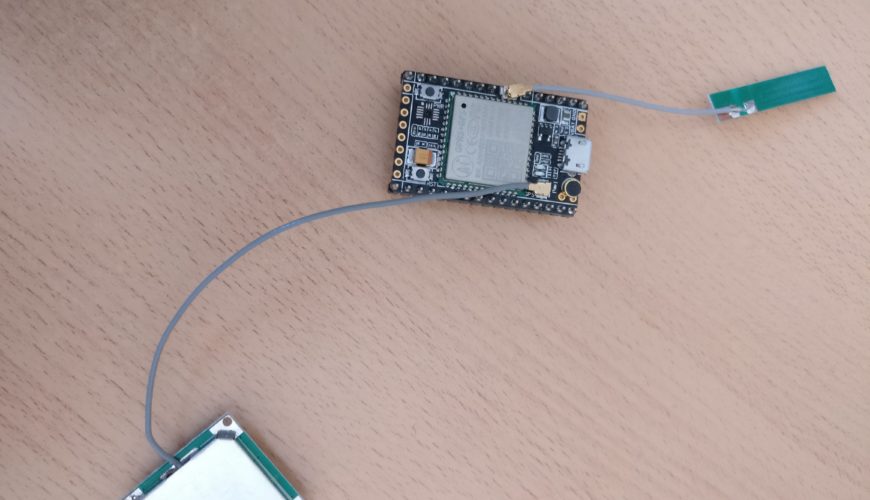
A9G pudding – GRPS, GPS and microcontroller all in one!

Not only does it have a cool name, this little dev board has a ton of functions :

GPS, SMS, Calls, Internet, Flash card reader, loads of I/Os, and much more…

The module responds to AT commands just like the A6 and A7 chips but I focused on using the build-in micro controller in C!!! No need for a seperate arduino, lowering cost, size and power requirements.

Getting set up and running under windows takes a bit of work but once it’s done, it works great!

Wiring:

setup your FTDI programmer module like this:

FTDIA9G
RX HST_TX
TX HST_RX
GNDGND
VCCDon’t connect

The board will be powered by an external phone charger pluged into the micro usb port.

Toolchain

The toolchain contains all the tools you’ll need to compile and run your code on the chip. You can download it here :
 http://test.ai-thinker.com/csdk/CSDTK42.7z (the documentation is here : https://ai-thinker-open.github.io/GPRS_C_SDK_DOC/en/c-sdk/installation.html)

Open PowerShell in admin mode and go to the CSDTK directory (or CSDTK42 in my case), and execute the config_env_admin.bat script. It will add all the environment variables you’ll need:

./config_env_admin.bat 

SDK:

Download the SDK :https://github.com/Ai-Thinker-Open/GPRS_C_SDK/releases/tag/V2.112 (the file GPRS_C_SDK_V2112.7z)

Open PowerShell again in admin mode and cd to the
GPRS_C_SDK directory. You will find a demo directory containg loads of examples!

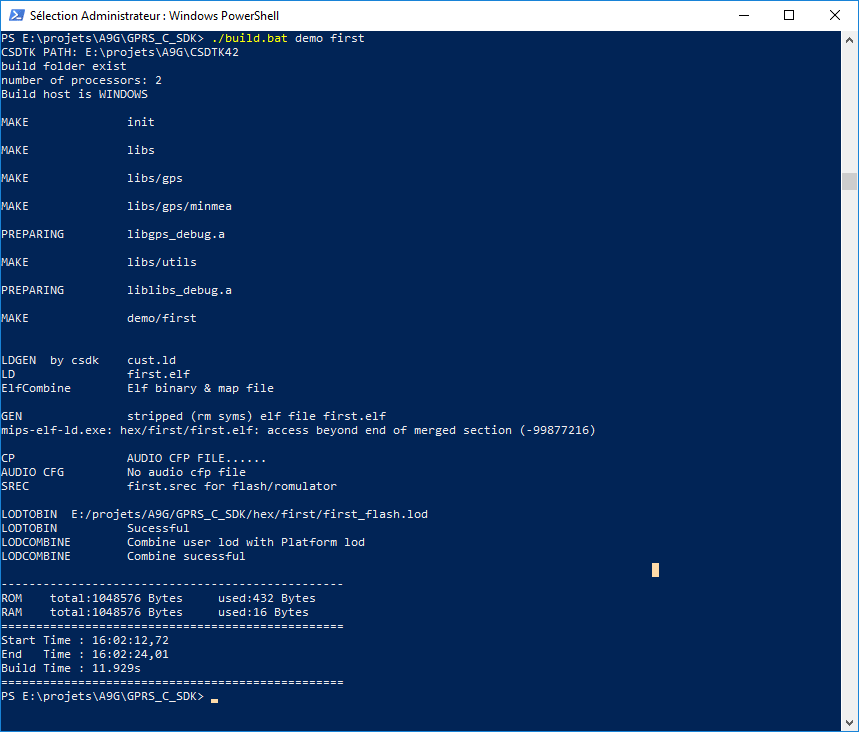
To test our setup, we’re going to compile the “first” example :

./build.bat demo first
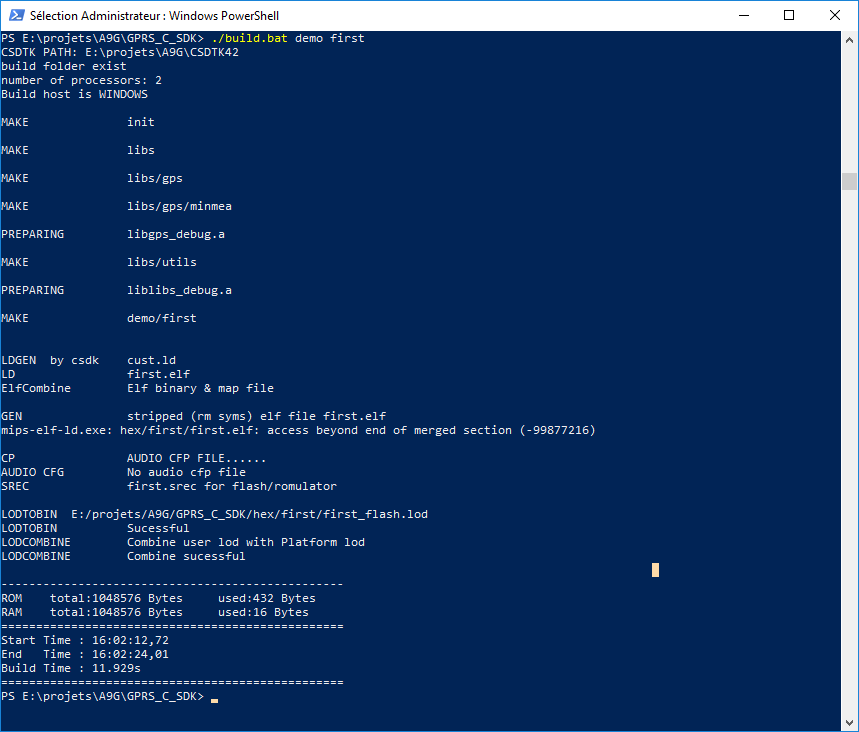
If all goes well, you should see the compiled version in the hex/first directory.

Getting our code on to the chip :

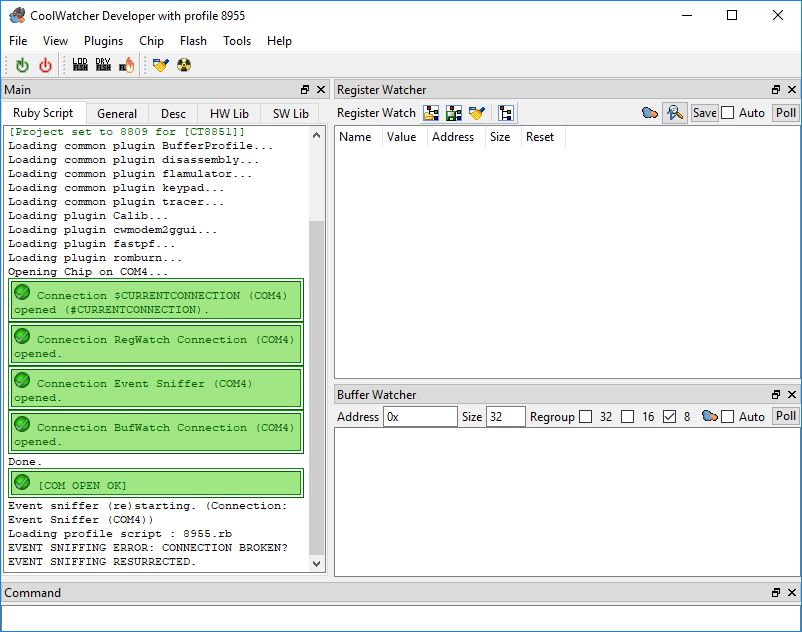
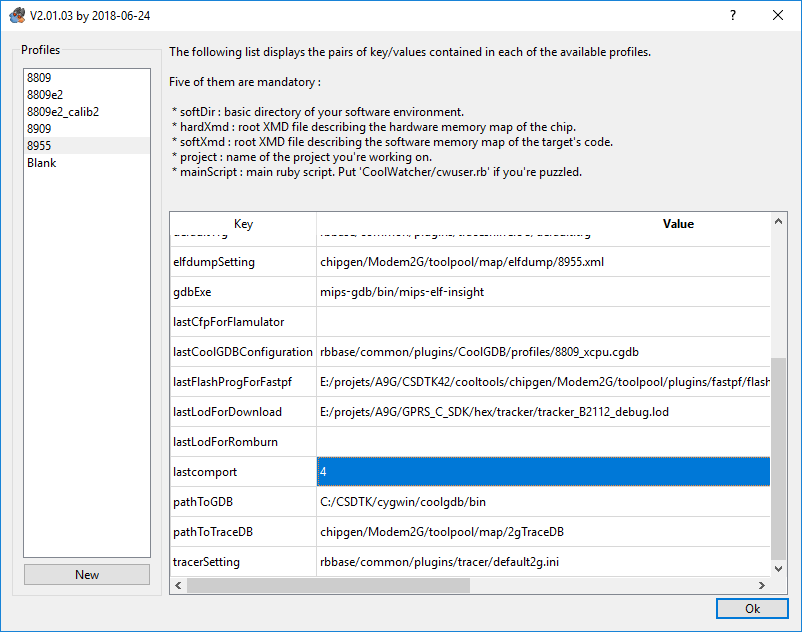
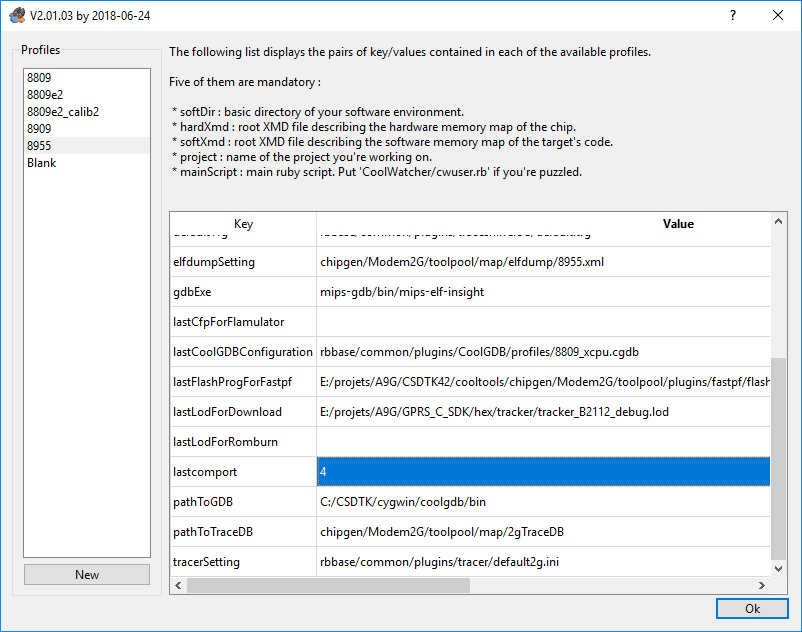
In the CSDTK42\cooltools directory, the coolwatcher.exe tool will allow us to send code to our dev board. When coolwatcher starts up, select profil 8955 and specify the lastcomport field (my FTDI is on port COM4) :
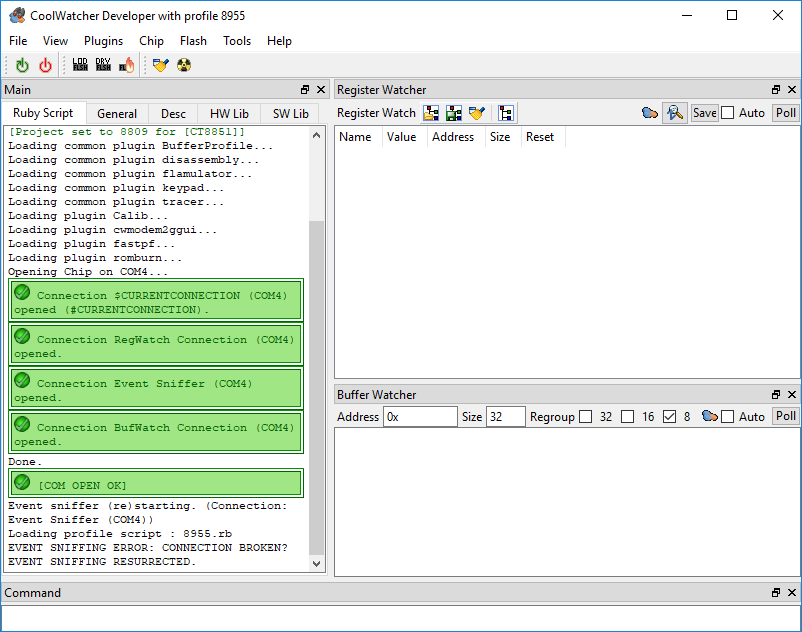
The first thing to do is select the programmer in the
« Flash > Choose Flash Programmer… » menu and choose the
CSDTK42\cooltools\chipgen\Modem2G\toolpool\plugins\fastpf\flash_programmershost_8955_flsh_spi32m_ramrun.lod file

Then we need to choose the compiled project in
« Flash > Choose LOD file… » and select the largest if the files we generated earlier : GPRS_C_SDK\hex\trackerfirst_B2112_debug.lod

To start uploading the code to the module, go to
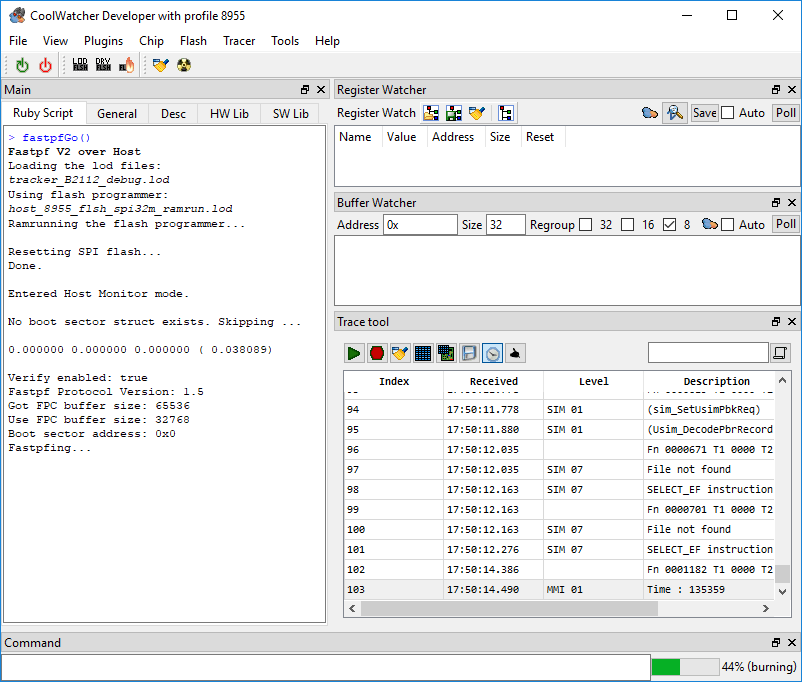
« Flash > Launch fastpf with current LOD file and flash programmer ».

If all goes well you should have something like this :
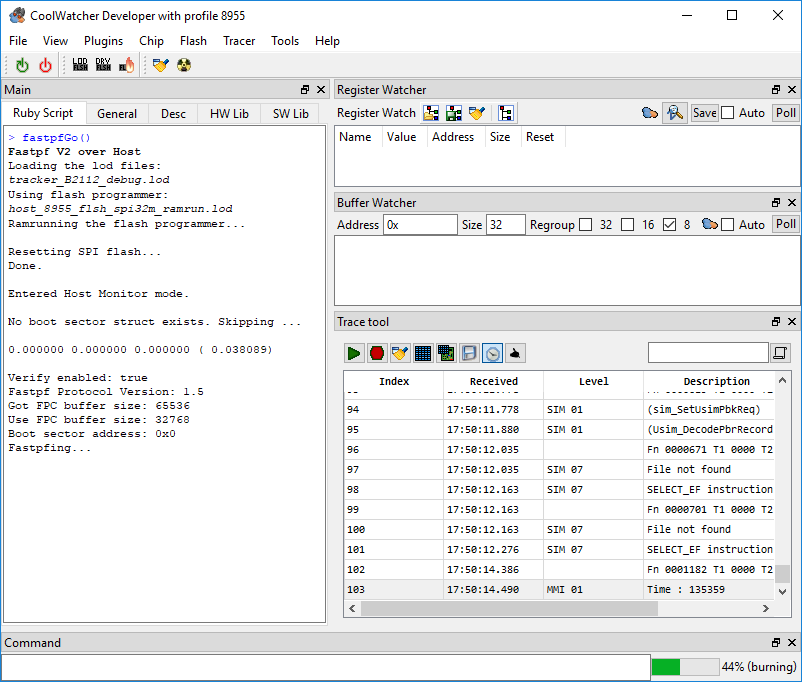
This step didn’t work on the first go for me, check the connections and especially that the GND pins are connected. If that doesn’t work, click on the
« Restart Chip » button in coolwatcher and try again…

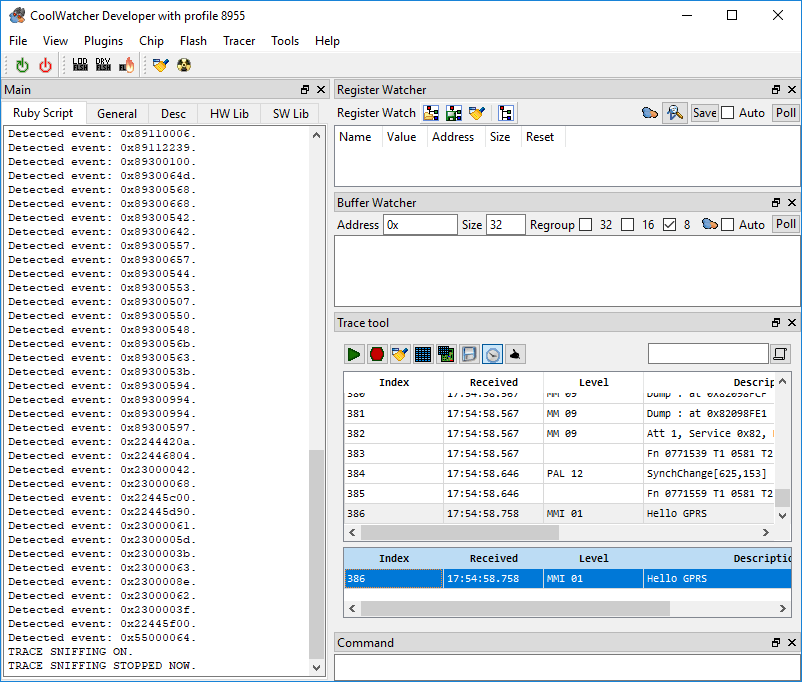
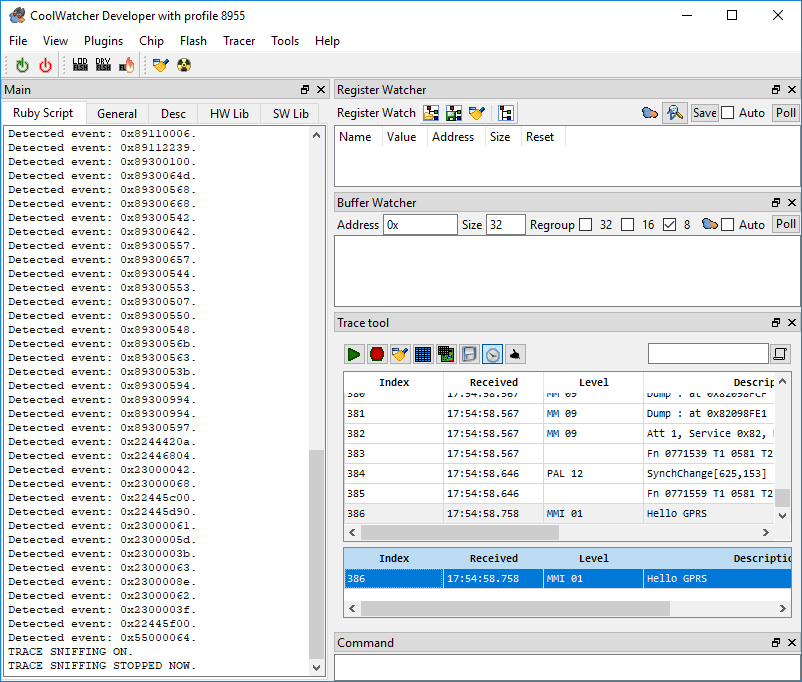
Once the upload has completed, go to the « Plugins > Activate Tracer » menu to see the debug info. You should see the « Hello GRPS » trace :
Voilà! We have programmed our module! now all we need to do is dig deeper into the examples to start having fun! 🙂
A9G pudding – GRPS, GPS et microcontrôleur tout en un

Ce petit module à tout faire est doté, en plus d’un nom qui donne faim, de fonctionnalités incroyables :

GPS, SMS, Appels, Internet, Emplacement carte flash, Entrées/Sorties à foison, et plein d’autres encore …

Ce module répond aux commandes AT comme pour les modules A6 et A7, mais je ne me suis pas trop intéressé à cet aspect car il est aussi programmable directement en C++!!! Du coup, pas besoin d’un autre microcontrôleur à côté!! On réduit donc les coûts, l’encombrement et la puissance nécessaire.

L’installation des dépendances sous Windows est un peu laborieux et n’est pas hyper intuitif, mais une fois que tout est en place c’est assez simple!

Branchement :

Branchez votre module de programmation FTDI au module comme ceci :

Programmateur FTDIModule A9G
RXHST_TX
TXHST_RX
GNDGND
VCCNE PAS BRANCHER!

Puis branchez une alimentation USB (5V – 2A) au module A9

Toolchain :

La toolchain contient tous les outils nécessaires à la compilation et au déploiement du code vers notre module. Téléchargez la ici : http://test.ai-thinker.com/csdk/CSDTK42.7z (la doc est ici : https://ai-thinker-open.github.io/GPRS_C_SDK_DOC/en/c-sdk/installation.html)

http://test.ai-thinker.com/csdk/CSDTK42.7z (la doc est ici : https://ai-thinker-open.github.io/GPRS_C_SDK_DOC/en/c-sdk/installation.html)

Ouvrez PowerShell en mode administrateur et placez vous dans le répertoire CSDTK (ou CSDTK42 dans mon cas), exécutez alors le script config_env_admin.bat qui va ajouter les variables d’environnement nécessaires :

./config_env_admin.bat 

SDK :

Téléchargez la SDK :https://github.com/Ai-Thinker-Open/GPRS_C_SDK/releases/tag/V2.112 (le fichier GPRS_C_SDK_V2112.7z)

Ouvrez de nouveau PowerShell en mode administrateur et placez vous dans le répertoire GPRS_C_SDK. Vous trouverez un répertoire demo contenant des exemple pour toutes les fonctionnalités!

Pour tester, nous allons compiler l’exemple first :

./build.bat demo first

Si tout se passe bien, vous verrez alors la version compilé dans le répertoire hex/first

Programmer le module :

Dans le répertoire CSDTK42\cooltools, l’utilitaire coolwatcher.exe permet de téléverser le code sur le module. Au lancement, sélectionnez le profil 8955 et précisez le port COM dans le champs lastcomport :

La première chose à faire est de sélectionner le programmateur dans le menu “Flash > Choose Flash Programmer…” et choisissez le fichier CSDTK42\cooltools\chipgen\Modem2G\toolpool\plugins\fastpf\flash_programmershost_8955_flsh_spi32m_ramrun.lod

Ensuite il faut choisir le projet compilé à téléverser en allant dans le menu “Flash > Choose LOD file…” et choisissez le fichier généré précédemment : GPRS_C_SDK\hex\trackerfirst_B2112_debug.lod (choisissez le fichier le plus lourd)

Pour lancer le téléversement, allez dans le menu “Flash > Launch fastpf with current LOD file and flash programmer”.

Si tout fonctionne bien vous devriez avoir ceci :

Cette étape n’a pas marché du premier coup pour moi, vérifiez l’ordre des branchements et surtout que les GND sont bien en commun. Si ça ne fonctionne toujours pas, cliquez sur le bouton “Restart Chip” dans coolwatcher.

Une fois l’upload terminé, allez dans le menu “Plugins > Activate Tracer” pour avoir accès à l’écran de debug. Vous devriez vois apparaître “Hello GRPS” :

Voilà! Nous avons programmé notre module! Il ne nous reste plus qu’à étudier les exemples et essayer de faire quelque chose de fun! 🙂